

How to print or download your certificate #
- Mag-log in sa iyong Worker Checks CheckHub.
- Sa ilalim ng Ang iyong mga Cheque at Produkto, click the tile for the check you want to view — for example, Nationally Coordinated Criminal History Check.
- I-click Tingnan ang PDF sa tuktok na kanang sulok ng iyong sertipiko.
- Choose your printer, or select “Save as PDF” para mag-download ng digital copy.
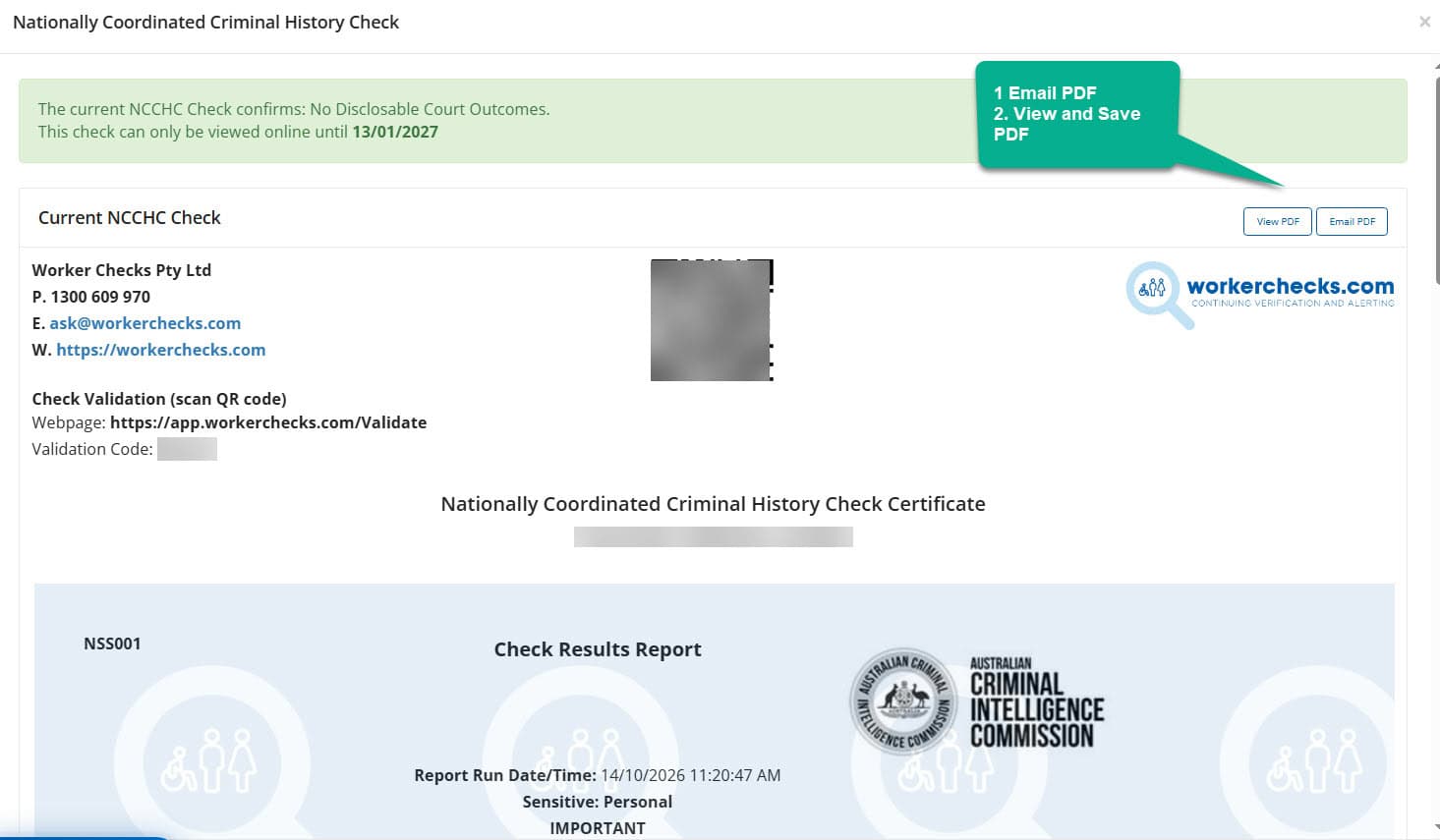
Ang iyong bersyon ng PDF ay kapareho ng iyong opisyal na digital na certificate at may kasamang mga naka-embed na feature ng pagpapatunay para sa pagiging tunay.
Tip: Printing directly from your CheckHub ensures you capture the latest, verified version of your certificate.
Sa isang computer? Clicking Tingnan ang PDF opens or downloads the file depending on your browser’s settings. If it doesn’t open automatically, here’s where to check:
Most browsers also let you right-click the Tingnan ang PDF button and choose “Save link as…” to pick exactly where it saves.
On a mobile phone? Tapping Tingnan ang PDF downloads the file automatically rather than opening it on screen. If nothing seems to happen, here’s where to look:
Still can’t find it? Tap Email PDF instead and we’ll send it straight to your inbox. See how →
How to email your certificate to yourself #
Can’t download the PDF, or want a copy in your inbox? Use the Email PDF pindutan.
- Mag-log in sa iyong CheckHub and open your certificate.
- I-click Email PDF, next to View PDF in the top-right corner.
- We’ll automatically email the PDF certificate to the email address registered on your account.
Not in your inbox? Give it a few minutes and check your junk or spam folder. The email only goes to the address on your account, so if that address is wrong or you no longer use it, makipag-ugnayan sa amin.
Need to send it to an employer? Email PDF only sends to you. To send your certificate to someone else, use e-share below. They’ll get a secure link they can verify instantly.
Certificate validation and authenticity #
All Worker Checks certificates include a built-in validation feature so third parties can confirm authenticity at any time.
Pagpapatunay ng QR Code #
Scan the QR code printed on the certificate to open a secure verification page.
Paghahanap ng Certificate ID #
Enter the unique certificate number on the Worker Checks Validation Portal to confirm status and authenticity.
Kailangan mo pa ba ng tulong? #
Our team typically responds within one business day.


 English (Australia)
 हिन्दी
 Tagalog
 Español de Colombia
 Français
 नेपाली
 简体中文
 Tiếng Việt