

Go to Your CheckHub
Navigate to app.workerchecks.com/account in your browser. This is your personal portal where all your checks are managed.
Sign Up (First-Time Users)
If this is your first visit, click the “Sign Up” option beneath the login box and create your account. If you already have an account, log in directly.

Register with Your Mobile Number
When registering, use the same mobile number you provided at checkout (or the one your employer has on file). This is how your purchased check gets linked to your account.
Find Your Check & Click the Action Button
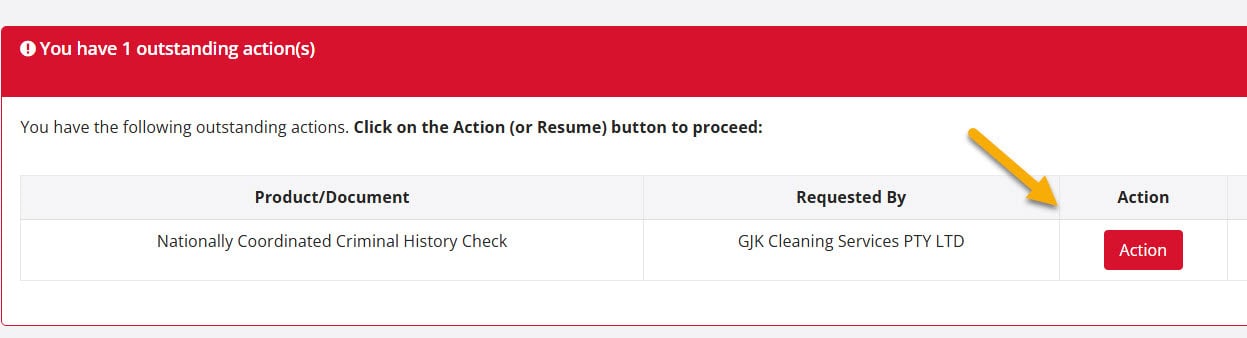
Once inside your CheckHub, locate your check in the “Pending Actions” table and click the “ACTION” button on the right-hand side. You’ll be guided through:
Email & Mobile Must Match
Make sure the email and mobile number used to register match what was provided at checkout or by your employer. If they differ, your check may not appear in Pending Actions.
After Submission
Once submitted, your check moves to the “Pending” tab while being processed. You’ll receive an email confirmation and can track progress anytime from your CheckHub.
If completing a check via a business invite, always begin from the original invitation email — this ensures your check is automatically linked to your organisation’s dashboard.
The remaining checks are generally finalised within a day, though some can take longer than 10 days depending on state police agency processing times.
Our support team is available to help you link a check, troubleshoot login issues, or answer questions about your application.


 English (Australia)
  हिन्दी
  Tagalog
  Español de Colombia
  Français
  नेपाली
  简体中文
简体中文  Tiếng Việt